Warehouse Draw Bulk Load
The process for users to add loans to a warehouse draw involves the following steps:, import, save quote, save funding option, lock quote, add quote to draw. This is time consuming when there are many loans in the draw. The bulk load option assists the user in this process.
The bulk load will allow the user to add a list of loans and the load will automatically perform:
- Import the most current version of the loan
- The default funding quote saved
- A warehouse check performed for funding
- The default funding option saved
- The funding quote locked
- A warehouse draw will be created once all the loans in the bulk load successfully complete all the above steps and qualify for warehouse funding.
The following loans will not be able to be added to a warehouse bulk load.
- Loans that have been flagged in Odyssey as only to be funded by investors
- Loans for domestic products
- Loans that do not have sufficient TCI cover
1. Navigate to the Clearmatch Admin Portal and select the "Clearquote" menu item.
2. Once in Clearquote select the "Bulk Import and Warehouse Load"" menu item
3. You will be presented with a page that will automatically list the warehouse draws that have been created as per the filter criteria supplied.
4. Use any of the filter options to refine the list of draws
5. The small icon on the right of the menu will slide the menu back and forth to give you more viewing space on the screen.
6. Click in the the blue "view " button  will navigate the user to the bulk load maintenance page where the user can view all the details and make any changes.
7. Click in the the green  "new load" button will navigate the user to the bulk load maintenance page where the user can create a new bulk load and add loans to be processed.
Bulk Load Maintenance Page
1. There is an option to add the loans to the bulk load
2. Clicking the  icon will expand the page to present a filter to search for loans.
3. Once all the loans are displayed on the page, select the include checkbox 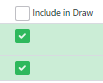 to select the specific loans you want included in the bulk load.
4. Clicking  will save all the loans included, against the bulk.
5. Import and Create Draw. Once saved, the next step is to process the bulk load. this will perform all the operation son the loan sin the list as described above in the overview at the top of this page.. To do this click .
.
NOTE! The process will start and run in the background. the user that started the process will receive a notification on his/her dashboard to inform them that the process is in progress. They will also receive a notification once the process is complete.
If loans in the bulk load pass the warehouse check they will be added to a new warehouse draw that would have been created.
Any loans that fail the import will be flagged with an error icon. these loans will have to have the issues rectified and can then be added to the new warehouse draw created. 
Note that a bulk load can only run once.
Any loans that cannot be funded by the warehouse will NOT be added to the warehouse draw created.
Related Articles
Warehouse Draw
All funding quotes that have been imported and calibrated and it has been determined that the funding will be done through the warehouse, will have to be added to a warehouse draw in order to be sent to AMAL for the bank to decide if the warehouse ...Notifications
The notifications will be used to notify users of actions, events, events, processes, etc. At this point the only notifications that will appear will be for the processing of bulk warehouse loads. A notification icon will appear in the top header bar ...Funding Option Status
The following funding option status's are available: Status StartStatus EndStatus Quoting True False Automatically set when a funding quote is created from a loan or endorsement imported from Odyssey Calibrated False Manually set in Clearquote when ...What do I do and in what order
The standard flow will be: In Odyssey - a quote is approved and becomes a loan OR an endorsement is approved against an existing loan Before settlement is to be done, no need to do before that, do the following in Clearquote: Sign Into Clearquote ...Funding Option
The funding option will determine who will provide funding for the funding quote and the details for the funding. Once you have completed the details on the quote maintenance page , you will need to complete the funding option page and calibrate and ...